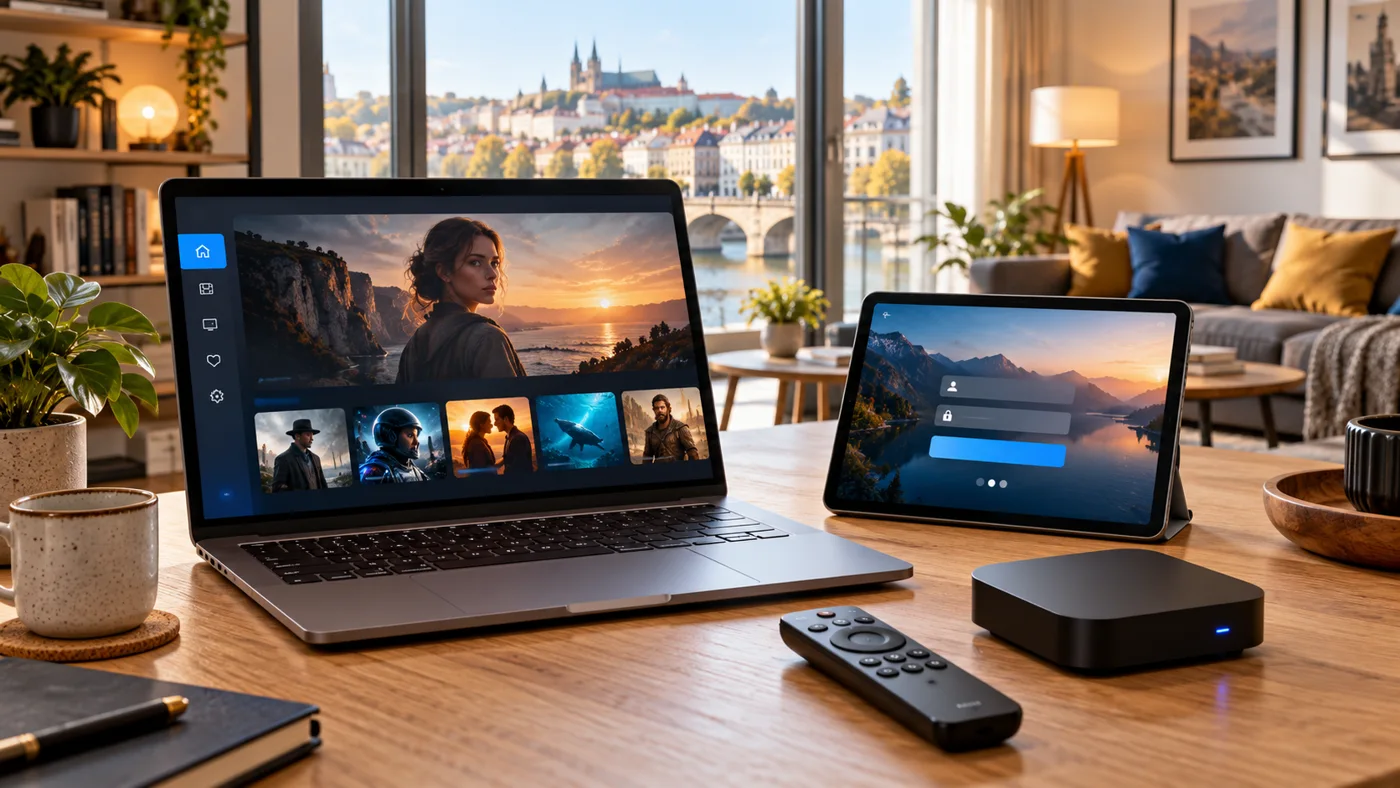
Start with a clear checklist rather than changing several settings at once. Confirm your device and plan, install a compatible player, then add the supplied access details carefully. Test one channel before organising favourites or setting up more screens. If something fails, note the exact message and the step where it happened. This helps you isolate the problem and gives support the information needed for a useful next step.
01
Before you install
Confirm the chosen collection, duration, current content and simultaneous connection limit. Identify your device model and the player you intend to use. Check whether the app requires its own licence and make sure the subscription activation details are available before starting.
02
Add the access details carefully
Choose the login method instructed for your setup. Copy the server address or playlist link exactly, and check for extra spaces in usernames and passwords. Use the correct case where required. Do not publish access details in comments, public screenshots or shared groups.
03
Test picture, sound and guide
Refresh the content list, open one live channel and check sound. Try a second channel to see whether an issue affects one source or the whole setup. Check the guide time zone if programme times look wrong, then organise your favourites once playback is working.
Four steps to your first stream
01
1. Confirm your setup
Send your device model and preferred plan. Check channels, languages, simultaneous connections and the final price. Choose a duration once these details are clear.
02
2. Install a compatible player
Use the official app store on your device. Check app compatibility and any separate licence charge. A player does not provide a subscription by itself.
03
3. Add your access details
Enter the supplied server address, username and password, or playlist URL, exactly as provided. Never share your login or playlist publicly.
04
4. Test and enjoy
Refresh the playlist and guide, open a channel and check picture and sound. Use Ethernet where possible. Contact support with your device and error message if something needs attention.
A CLEAR NEXT STEP
Keep these details ready.
A few useful details make choosing, setup and support easier.
✓Device model, player and connection type
✓Confirmed plan, duration and connection allowance
✓Supplied access details kept private
✓One channel tested before adding more devices
Frequently asked questions
What should I try if the login fails?
Check the access method, server address and copied credentials for typing errors or extra spaces. Confirm activation status and send support the exact error, with sensitive details hidden.
What should I try if playback buffers?
Restart the player, test another channel and compare Ethernet with Wi-Fi where possible. Pause large downloads. If the issue continues, report whether it affects one channel or all playback.